


Door and Environmental Sensor (DES-2)
Installation and support
Select your preferred language or scroll down to see more installation options.
Getting started
01
Get fleet admin credentials
If you’re managing the entire Asset Gateway installation process, you’ll need to be setup as a fleet admin in your company’s Motive Fleet Dashboard. An existing fleet admin can help you attain these credentials.
02
Download the Motive Fleet App
Log in with your fleet admin credentials.


Note: If you do not have access to the Motive Fleet App, skip to Step 4.
03
Go to the Devices tab
Follow the in-app instructions to guide you through installing the Door and Environmental Sensor. Once complete, skip to Step 9.
04
Log in to the Fleet Dashboard
Ensure you use your fleet admin credentials when logging in.
05
Select an asset
Either add a new asset or edit an existing asset from the Assets tab of the sidebar menu. Ensure an Asset Gateway is assigned to the asset you choose.
06
Assign your Door and Environmental Sensor
Use the serial number (printed on the bottom of the device) to assign your sensor to the chosen asset.
07
Install your Asset Gateway
Use cable provided to connect the Asset Gateway to the reefer.
08
Mount and activate your Door and Environmental Sensor
Mount your sensor inside the trailer and press the pinhole reset button to pair the sensor with the Asset Gateway.
09
View your asset live on Fleet View
Once the Door and Environmental Sensor is fully set up, you’ll be able to track your assets on the Motive Fleet Dashboard.
Installation guides
Asset Gateway Mini (AG-31)
Install the Asset Gateway using CABLE-AG-31.2-3WR or CABLE-AG-31.2-8WR to connect to a switched ignition power source on reefers.
Door and Environmental Sensor
Install the sensor and connect it to the Asset Gateway to get temperature, humidity, and door status telematics data.
Understanding LED behavior
LED will stay illuminated for a few seconds after the reset button is pressed.
Solid blue
Device is working properly.
Blinking blue
Pairing to an Asset Gateway.
Solid red
Low battery.
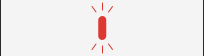
Blinking red
Paired Asset Gateway cannot be found.
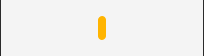
Solid yellow
Connectivity to the Asset Gateway is weak.
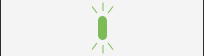
One green flash
Transition from Door Open to Door Closed.
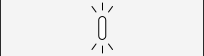
One white flash
Transition from Door Closed to Door Open
Troubleshooting
How to replace the battery on your Door and Environmental Sensor
DES-2 LED is solid red? That means it’s time to replace the battery. The following steps will show you how to easily replace the CR2477X battery.
How to unpair your Door and Environmental Sensor from your Asset Gateway?
For any reason, you need to move your sensor or swap in a new one, follow these steps to ensure that the sensor is correctly unpaired and un-assigned.
My Door and Environmental Sensor is not showing temperature data
You’ve gone through all the steps, LED has flashed blue, but the data isn’t showing up. Follow these steps to reset your device connection.
Need additional help? Feel free to reach out to us.
Call us at 1-855-434-3564 or email us at support@gomotive.com