

Motive AI Dashcam Plus: Installation & support.
Get your AI Dashcam Plus up and running in just a few minutes.
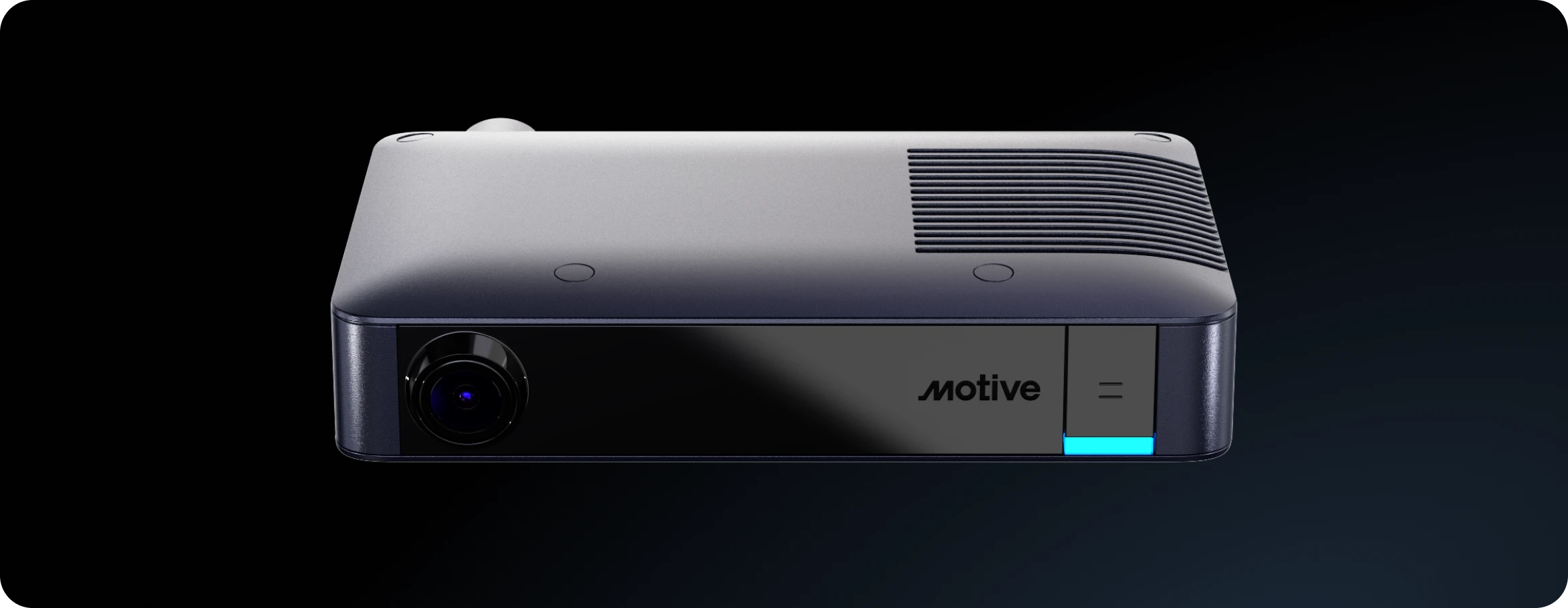
Step-by-step guide.
01
Get fleet admin credentials
If you’re managing the entire AI Dashcam Plus installation process, you’ll need to be set up as a fleet admin in your company’s Motive Dashboard. A fleet admin can help you get these credentials.
Note: If you are simply installing an AI Dashcam Plus on behalf of a company, please skip to Step 4. A designated fleet admin at the company will need to handle steps 2 through 3.
02
Add a vehicle
Once you’ve logged into the Motive Dashboard, go to the Admin section to add a new vehicle.
03
Assign the device to vehicle
Assign the AI Dashcam Plus to the vehicle.
04
Connect the AI Dashcam Plus
Plug the provided cable into your vehicle’s diagnostic port. Connect the AI Dashcam Plus through the vehicle adapter.
05
Start your engine
Once the right-side LED turns solid blue, your AI Dashcam Plus is powered on and connected!
06
Test the mounting location
Select the best place to position your camera, then test it using the Fleet App.
07
Mount your AI Dashcam Plus
Firmly attach and secure your camera.
Cable-specific installations.
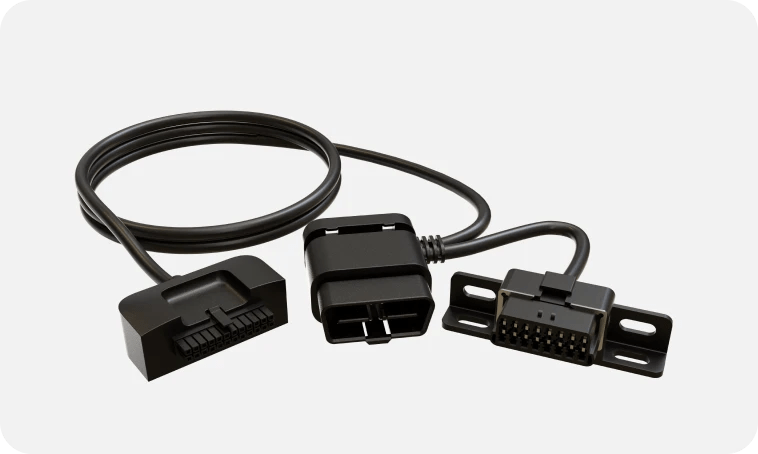
Universal OBD-II Y-cable
VCBL-Y-OBD2
Universal OBD-II Y-cable
VCBL-Y-OBD2
Universal OBD-II Y-cable
VCBL-Y-OBD2
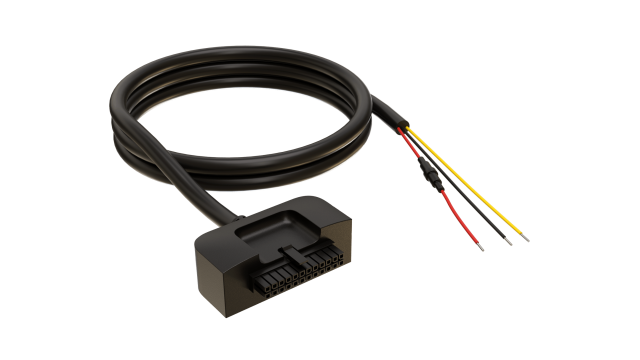
Cable VCBL-D-HW3W
Mounts and Accessories
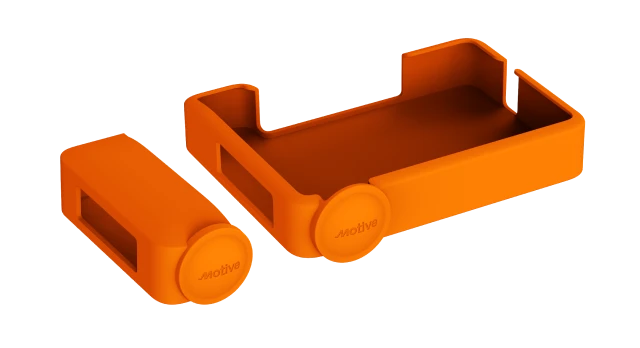
Dual Lens Cover (Road + Driver), AI Dashcam Plus
ACC-DC6X-LCDUAL
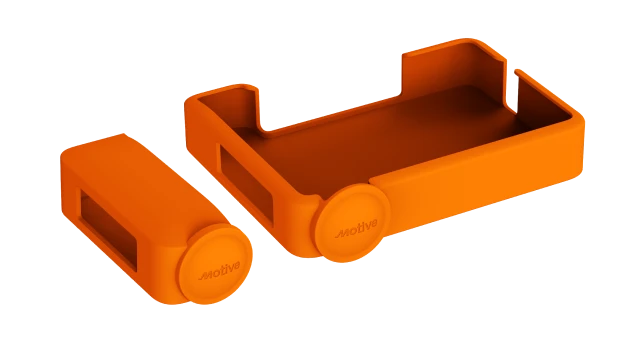
Dual Lens Cover (Road + Driver), AI Dashcam Plus
ACC-DC6X-LCDUAL
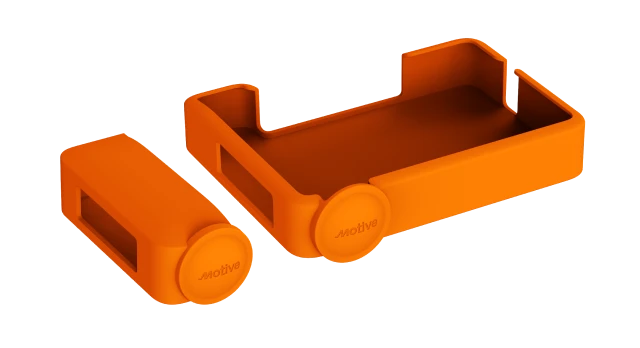
Cubierta de lente dual (Camino + Conductor), IA Dashcam Plus
ACC-DC6X-LCDUAL
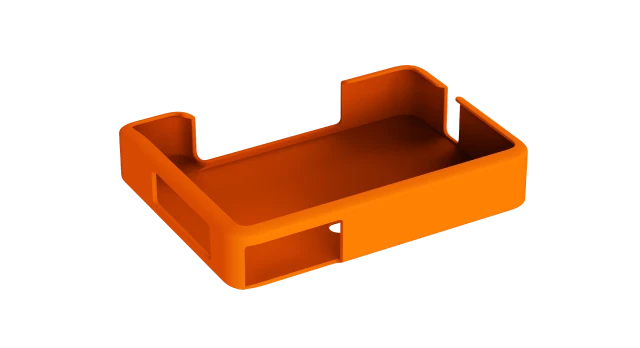
Road Lens Cover, AI Dashcam Plus
ACC-DC6X-LCROAD
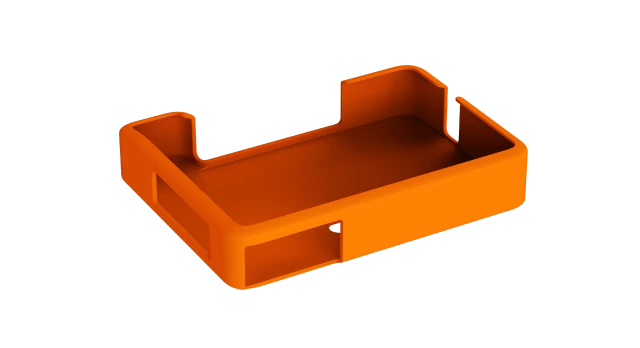
Road Lens Cover, AI Dashcam Plus
ACC-DC6X-LCROAD
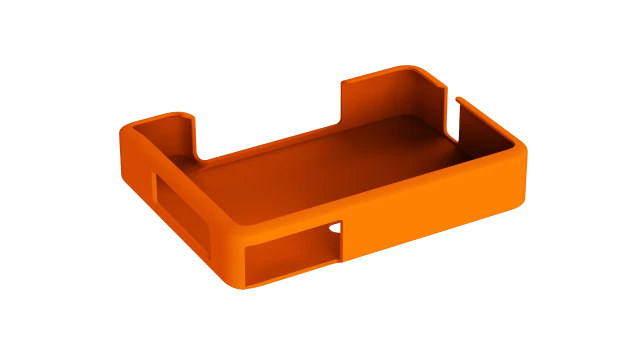
Cubierta de lente de camino, IA Dashcam Plus
ACC-DC6X-LCROAD
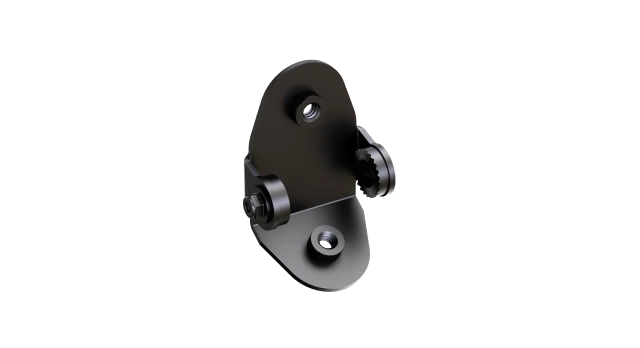
Mount Adapter for AI Dashcam Plus
ACC-DC6X-MNT-ADPTR1
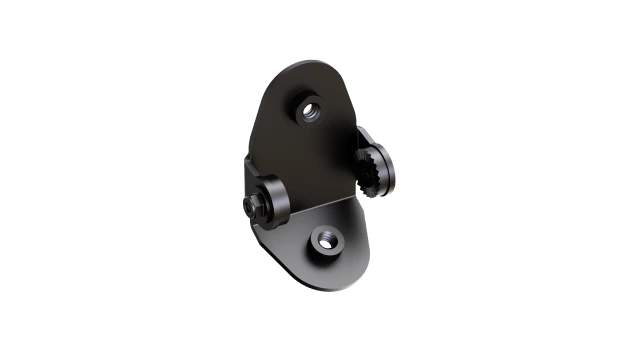
Mount Adapter for AI Dashcam Plus
ACC-DC6X-MNT-ADPTR1
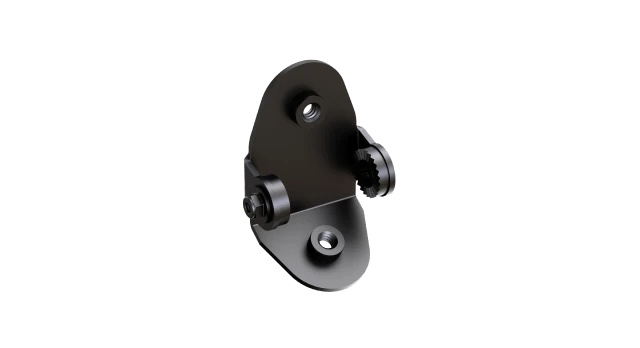
Adaptador de soporte para IA Dashcam Plus
ACC-DC6X-MNT-ADPTR1
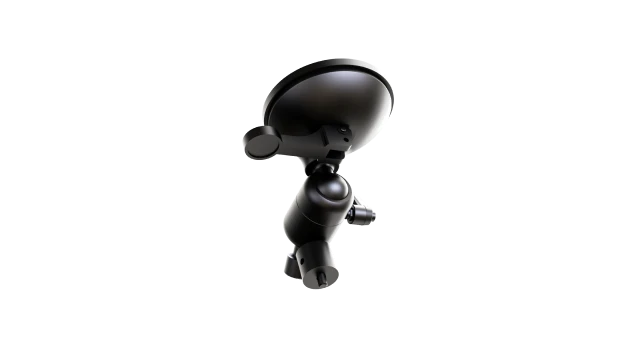
Suction Cup Mount for AI Dashcam Plus
*requires mount adapter to complete setup
ACC-DC6X-MNT-SUCTN1
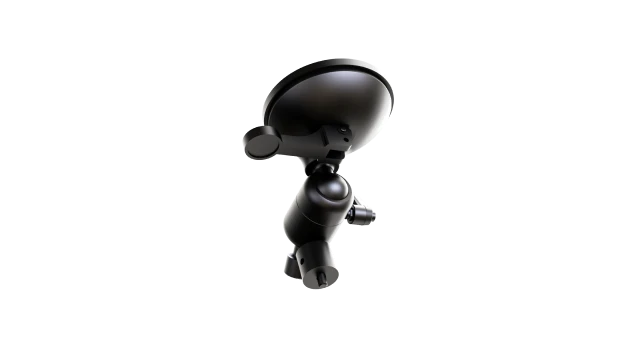
Suction Cup Mount for AI Dashcam Plus
*requires mount adapter to complete setup
ACC-DC6X-MNT-SUCTN1
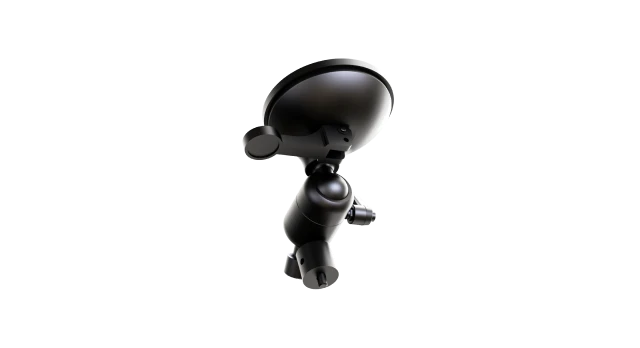
Soporte de ventosa para IA Dashcam Plus
*requiere adaptador de soporte para completar la instalación
ACC-DC6X-MNT-SUCTN1
Understanding the LEDs.
The Motive AI Dashcam Plus comes equipped with an LED and speaker to alert you of its connection status. When the AI Dashcam Plus detects unsafe driving behavior, it automatically notifies drivers with visual and audio feedback.
Visual alerts








Audio alerts
Quick Capture
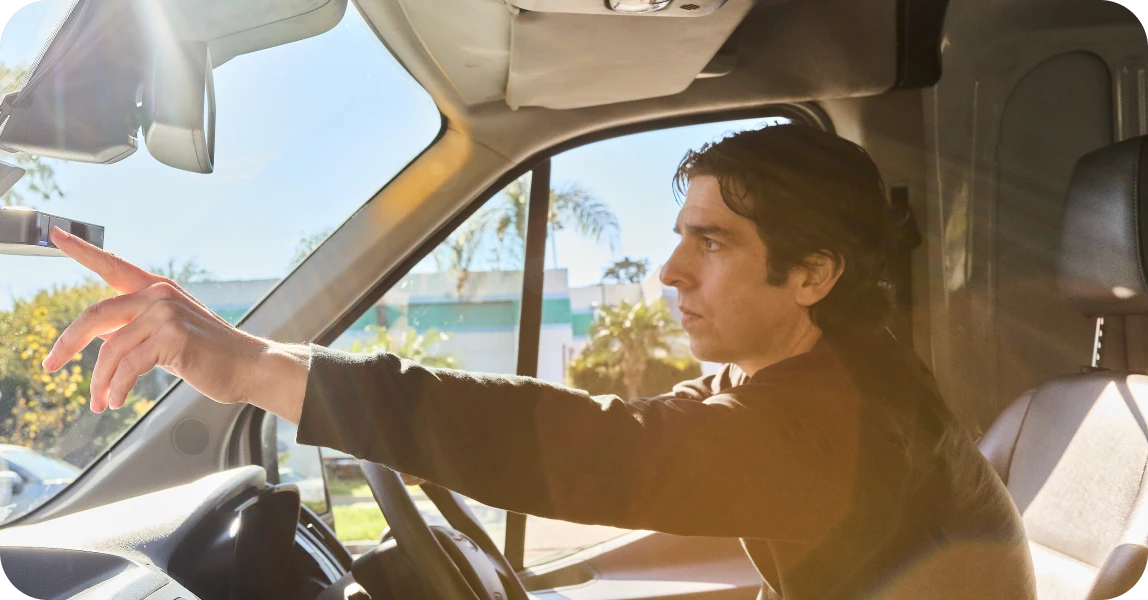
Drivers can push the button on the camera to instantly record and share video directly with their safety team.
Innovative safety features.
Event customization
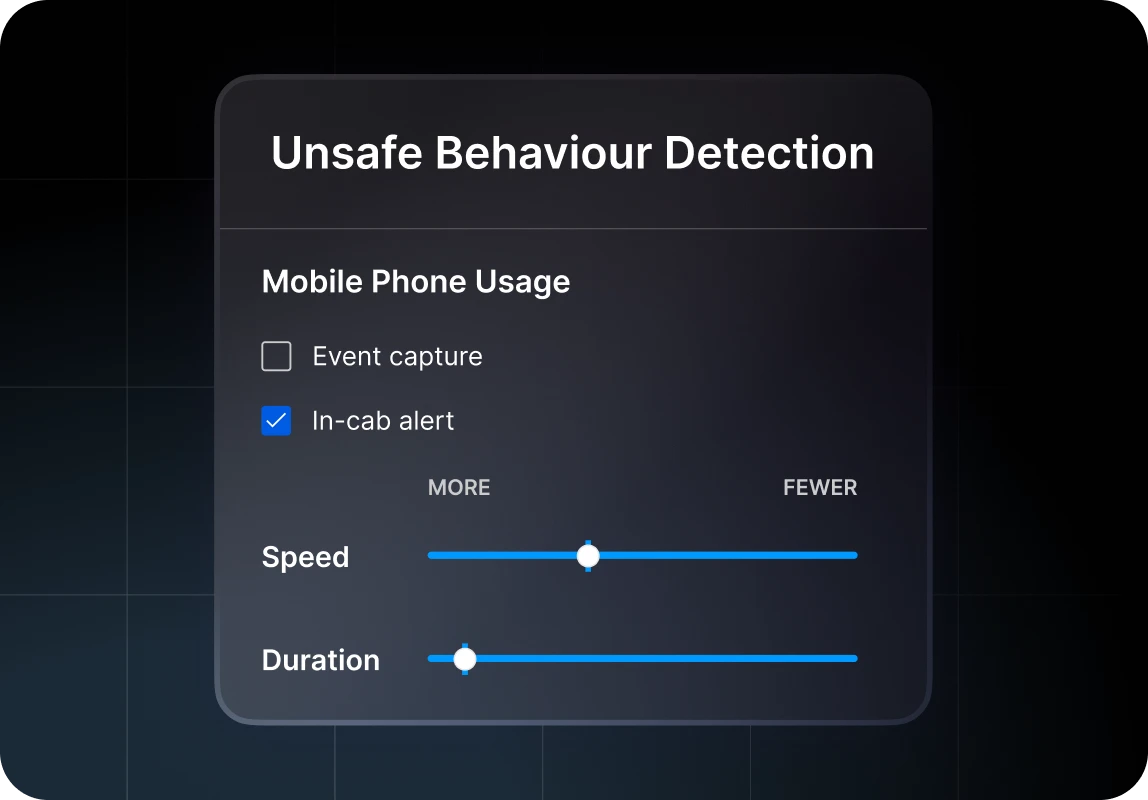
Customise the safety experience based on your programme’s needs. Choose which events to detect and set thresholds for each.
Driver App coaching
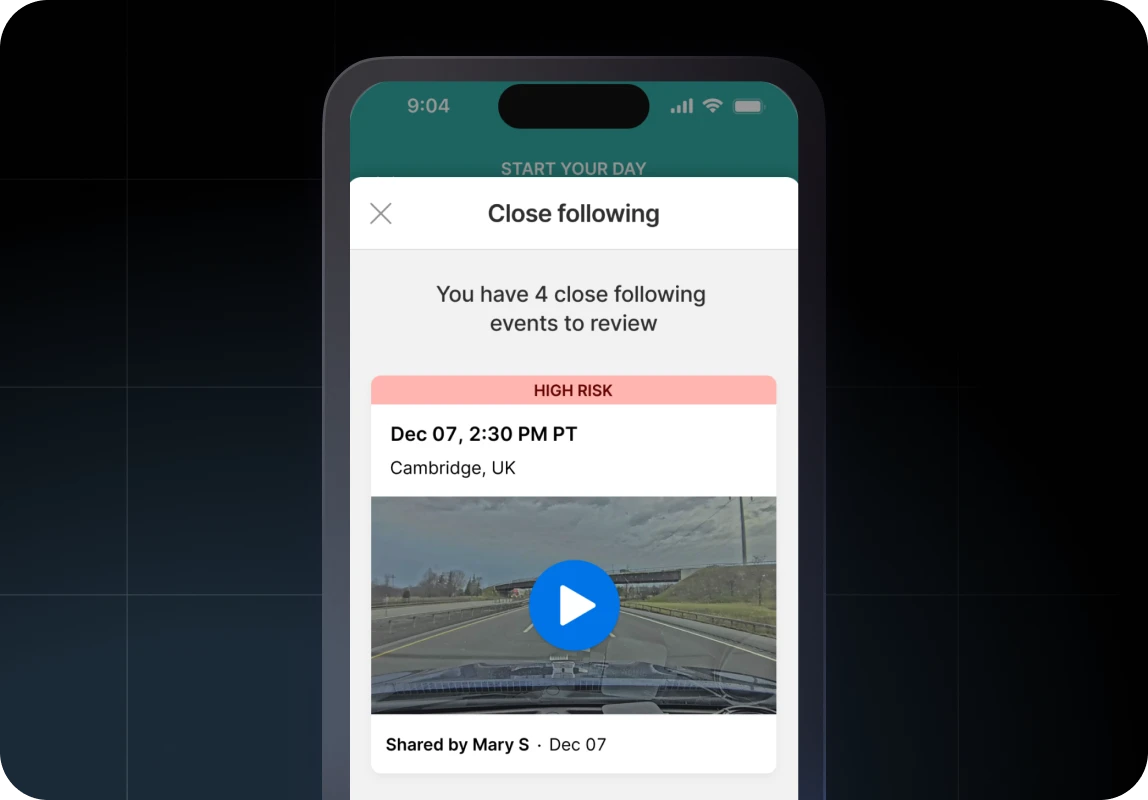
Drivers can track their Safety Scores and weekly progress, and review training videos that identify behaviours impacting their performance.
Custom Safety Score
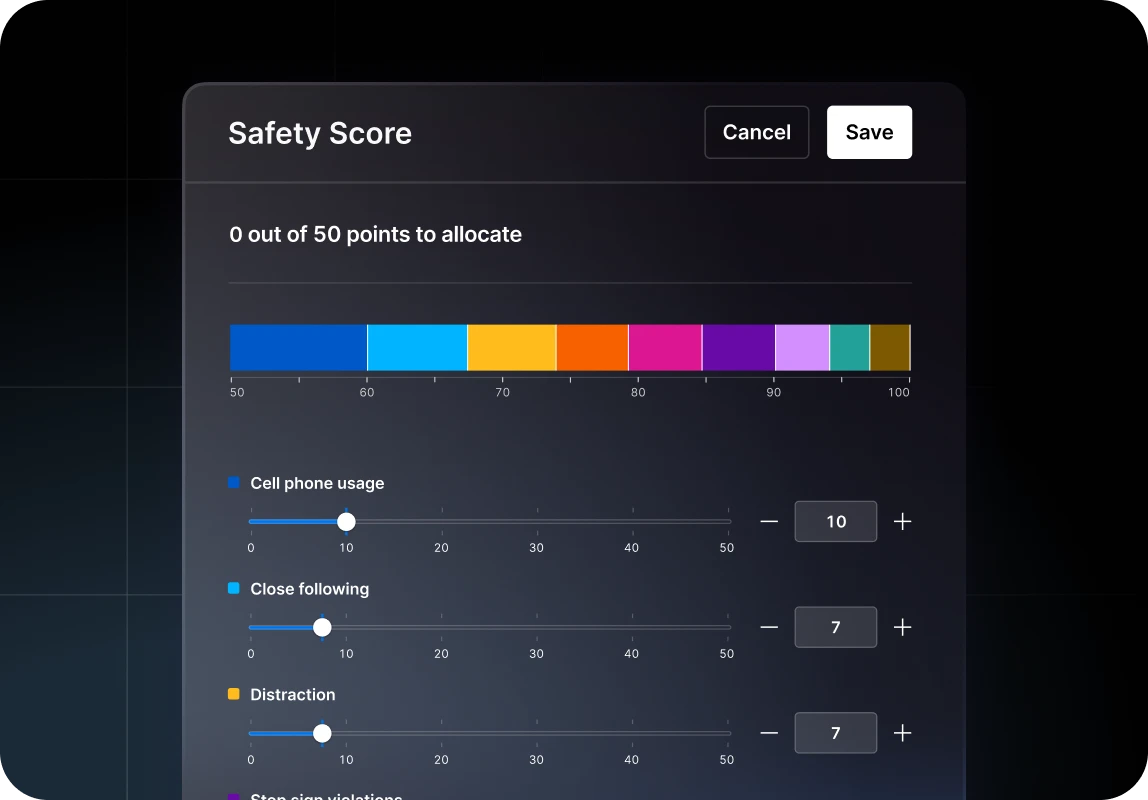
The Safety Score evaluates driver performance over time, giving you an accurate measurement of driver risk across 15+ unsafe and positive driving behaviours.
Video recall
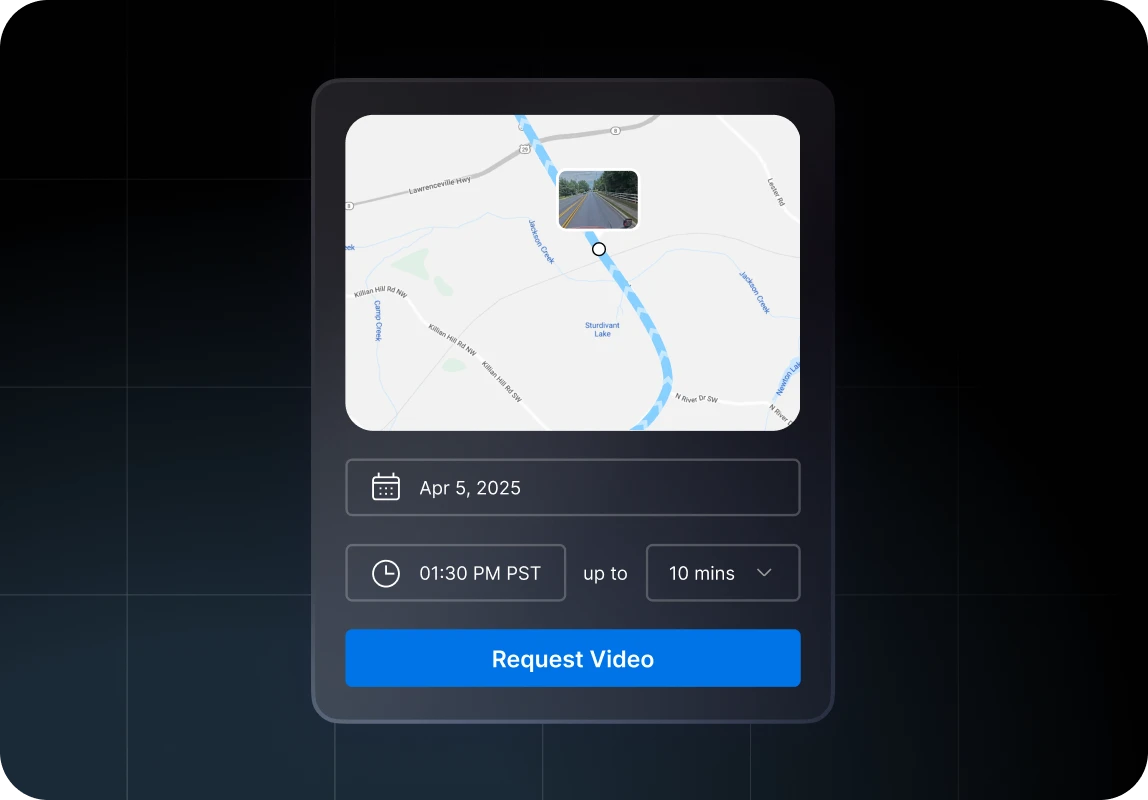
Access additional context for events, with recall of up to 60 minutes of timelapse video in a single request.
Learn more about Motive.
Need additional help?
Call us at +44 800 055 6684 or email us at support@gomotive.com.